
Creating Exit Tickets
Add Multiple-Choice Mastery Questions to an Exit Ticket
Teachers can add multiple-choice mastery questions to exit tickets using the steps below
- Create an exit ticket
- Add a mastery question and choose multiple-choice as the question type; it will have a drop-down of other question types.
- Fill out the required fields:
- Enter the question
- Add at least two answer options
- To add more than four answer options, click Add Row
- To remove an answer, click the trash can icon
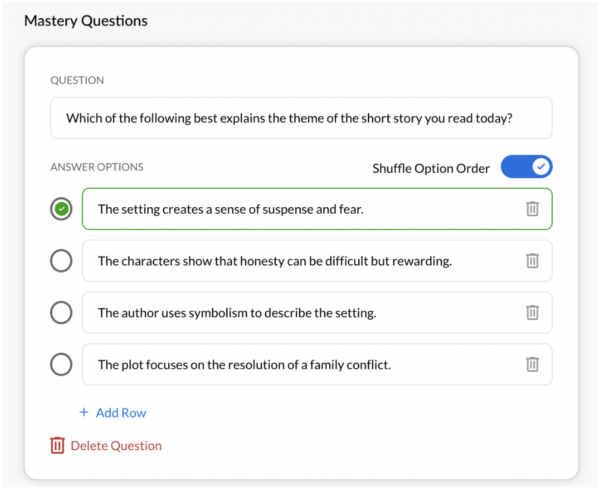
- Select the correct answer by clicking the round button next to the correct answer option. A green checkmark and outline will confirm your selection.

- Shuffle Option Order is enabled by default. This randomizes the answer order for each student to prevent cheating. Toggle it off if you want all students to see the same option order.

- To remove a question, scroll to the bottom of the question and click Delete Question.

Using AI to Generate Multiple Choice Mastery Questions
Teachers can use AI to generate answer options for multiple-choice mastery questions, making exit ticket creation faster and more efficient.
To generate answer options:
- Create an exit ticket
- Add a multiple-choice mastery question
- Type your question into the question field
- Click Add Row to add more than four answer options
- Click the trash can icon to remove an answer option
- Click Generate with AI below the question field
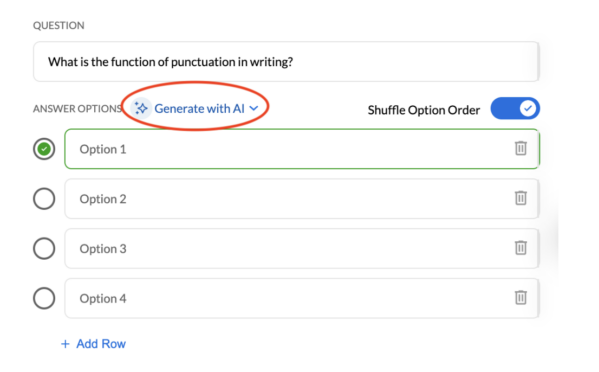
- An Additional Context box will pop up where you have the option to add notes about the format and/or content of answer options. You can use the quick links below the box for frequently used prompts.
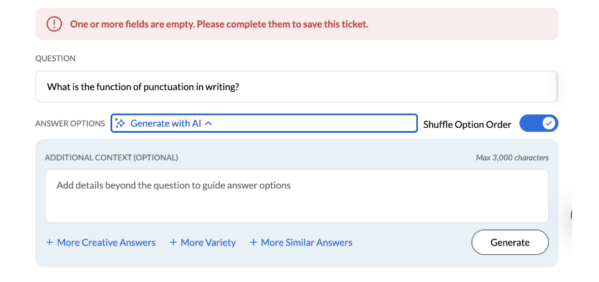
- Click Generate
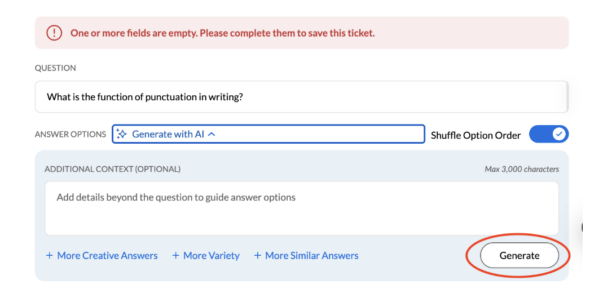
- Review the AI-generated answer options
- If satisfied, save the exit ticket
- If not satisfied, edit the answer options
- Click in the option field and make your edits
- Or click Generate with AI again and add more information in the Additional Context box
- Note: Regenerating will erase all previous answer options, including those generated with AI or entered manually.