
Creating Exit Tickets
Scoring Written Response Questions using AI
Save time scoring written response mastery questions with AI-generated scores that you can review, adjust, and approve. Students will only see their scores after you review and approve them.
Setting Up AI Scoring
1.Create a written response mastery question.
-
- For more information on how to create a written response question, See: Add Written Response Mastery Question to an Exit Ticket
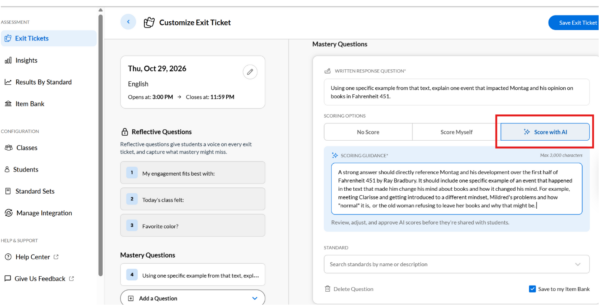
2. Select Score with AI.
-
- You can also choose to score responses yourself, or use an unscored written response that does not count toward mastery.
3. In the Scoring Guidance box, describe what a student’s response should include to demonstrate mastery.
-
- Tip: Be as specific as possible about what makes an answer correct. This can include but is not limited to: length requirements, examples from class materials, and rubric elements.
4. Select a standard from the drop down menu.
5. When you are finished, select Save Exit Ticket.
Reviewing AI-generated scores
After your students submit the exit ticket, you will be able to
- Go to Exit Tickets in the menu.
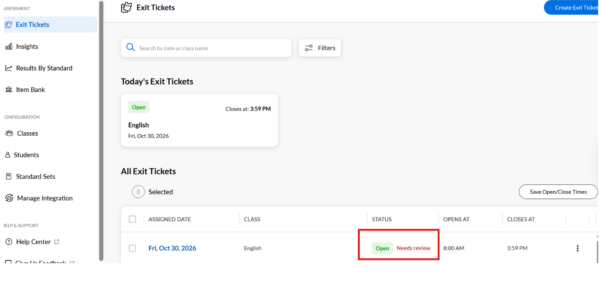
- Find the exit ticket marked Needs Review and select it.
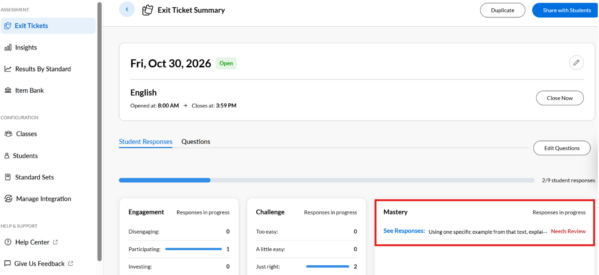
- In the exit ticket summary, find the Mastery Question marked Needs Review and select See Responses.
 Review the AI-generated scores for each student:
- Green checkmark: The student demonstrated mastery.
- Orange X: The student responded incorrectly.
- Review your AI-generated scores for accuracy.
- If all scores are graded accurately, you can select Approve All AI Scores.
- You can change answers as needed by selecting the checkmark or the X.
- Teachers can also provide feedback by selecting the blue speech bubble. AI does not provide feedback.
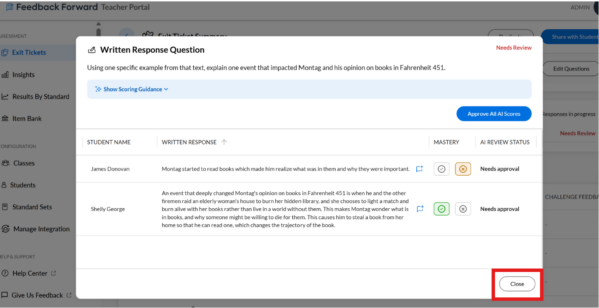
- When you’re finished reviewing, select Close.