Creating Exit Tickets
Add Fill-in-the-Blank Mastery Questions to an Exit Ticket
Teachers can use Fill-in-the-Blank mastery questions to have students complete a statement or question with a text or number answer.
- Create an exit ticket
- Add a mastery question and select Fill-in-the-Blank from the question-type drop down menu.
- You can also select a previously saved question from your personal item bank.
- Learn more about adding Mastery Questions
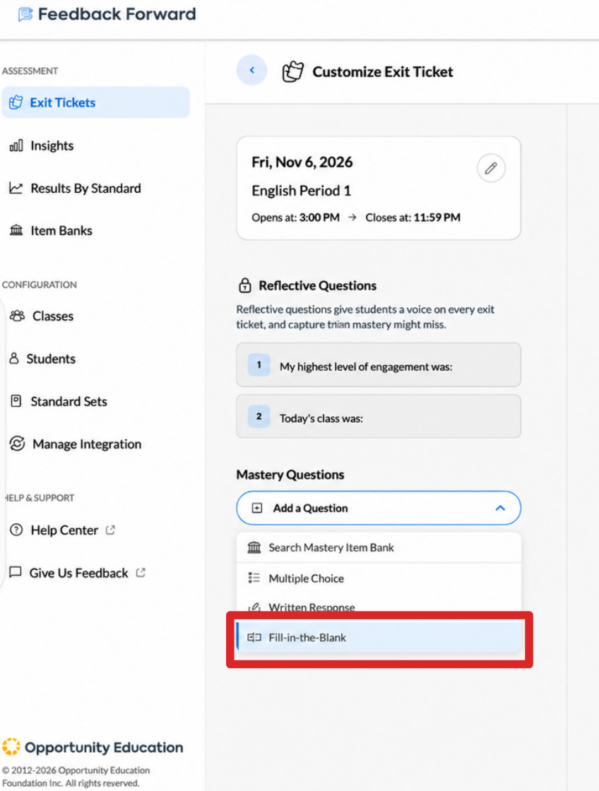
You can add multiple blanks to a single question using text blanks, number blanks, or a combination of both. Choose the blank type that best fits the answer you want students to provide.
Adding a Text Blank
Use a text blank when you want students to enter a word or short written answer.
- Write in your question.
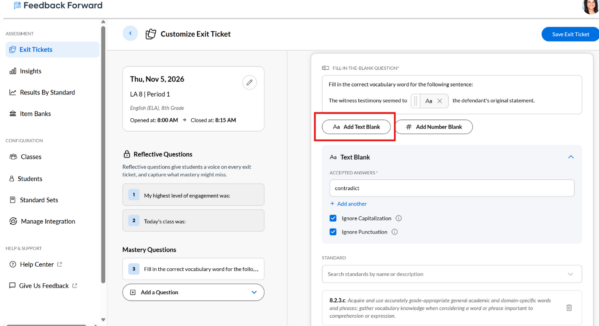
- Select “Add Text Blank.”
- Enter the correct answer in the “Accepted Answers” text line. You can add multiple accepted answers.
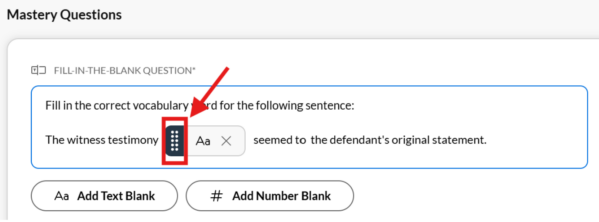
4. To reposition the blank within the question, drag the handle with two rows of dots.
-
- Tip: You can check the boxes that say, “Ignore Capitalization” and “Ignore Punctuation” to accept answers that differ from your accepted answers only in those ways. Leave a setting unchecked to require a match for that setting.
Adding a Number Blank
Use a number blank when you want students to enter a numerical answer.
- Write in your question.
- Select “Add Number Blank.”
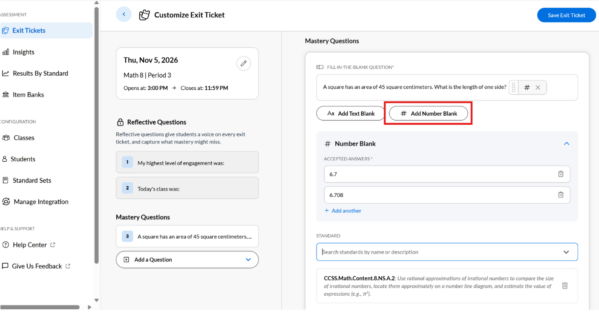
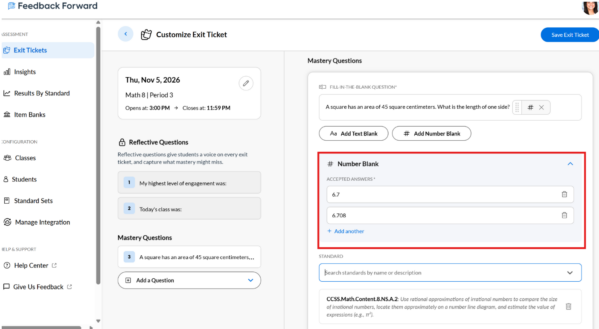
3. Enter the correct answer in the “Accepted Answers” text line. You can add multiple accepted answers.
To remove a question, scroll to the bottom of the question and click Delete Question.

Reviewing Fill-in-the-Blank Mastery Questions
- Select the exit ticket you want to review.
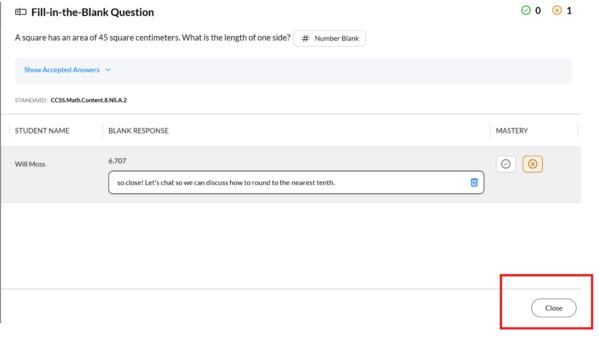
- On the Exit Ticket Summary page, select “See Responses” under “Mastery.”
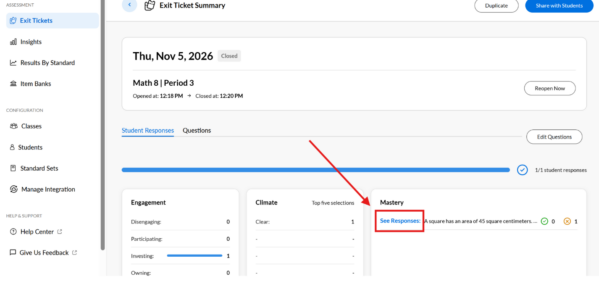
3. Review your student’s responses:
-
- Green checkmark: The student answered correctly and demonstrated mastery.
- Orange X: The student responded incorrectly and did not demonstrate mastery.
4. To adjust a mastery score, select the checkmark or the X.
Note: If a question contains multiple blanks, students must answer all blanks correctly to receive credit for the question.
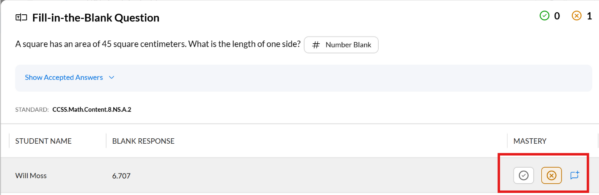
5. To give a student feedback, select the blue speech bubble.
6. When you are done reviewing scores and writing feedback, select Close.